Method 1: Using Windows Settings
Open Windows Settings:
PressWin + I to open the Settings window.Navigate to Network & Internet:
Click on Network & Internet.Go to Proxy Settings:
In the left sidebar, click on Proxy.Check Proxy Configuration:
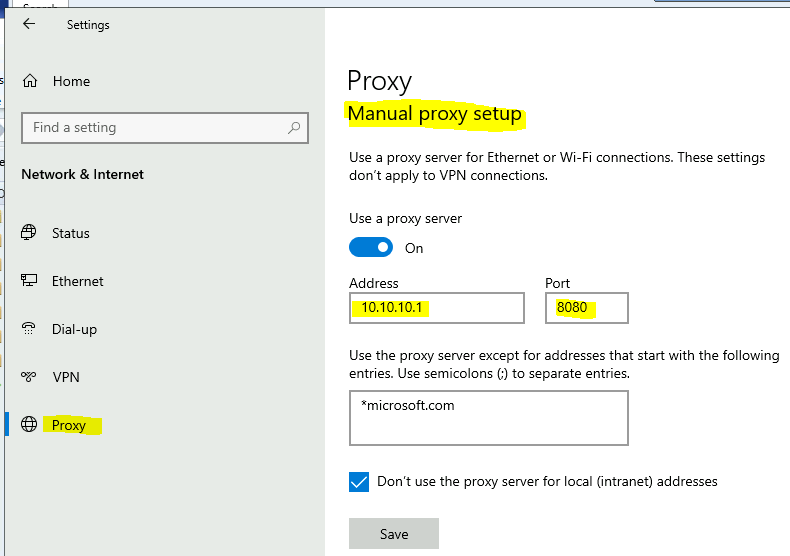
Under Automatic proxy setup, see if Automatically detect settings is toggled on.Under Manual proxy setup, see if Use a proxy server is turned On.
If it’s on, the address and port of the proxy server will be listed below.
Method 2: Using Command Prompt
Open Command Prompt:
PressWin + R, type cmd, and press Enter.Check Proxy Settings:
Type the following command and press Enter:
Interpret the Results:
If the result is Direct access (no proxy server), no proxy is configured at the system level.
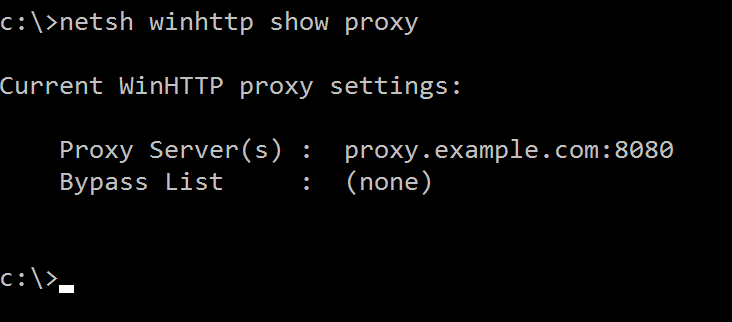
If a proxy server is listed, it will show the address and port.
Method 3: Using Internet Options
Open Internet Options:
PressWin + R, type inetcpl.cpl, and press Enter.Go to Connections Tab:
Click on the Connections tab.Open LAN Settings:
Click the LAN settings button near the bottom.Check Proxy Settings:
See if Use a proxy server for your LAN is checked.If checked, the proxy server’s address and port will be shown.
Also, check if Automatically detect settings is checked under Automatic configuration.

1) Add proxy exceptions (recommended when you need certain hosts to bypass the proxy)
Purpose: Let specific hosts, domains or local addresses skip the proxy while leaving the proxy active for everything else.
Windows Settings (Windows 10 / 11)
In the exceptions box add hosts/domains separated by semicolons. Examples:
localhost;127.0.0.1;*.mycompany.local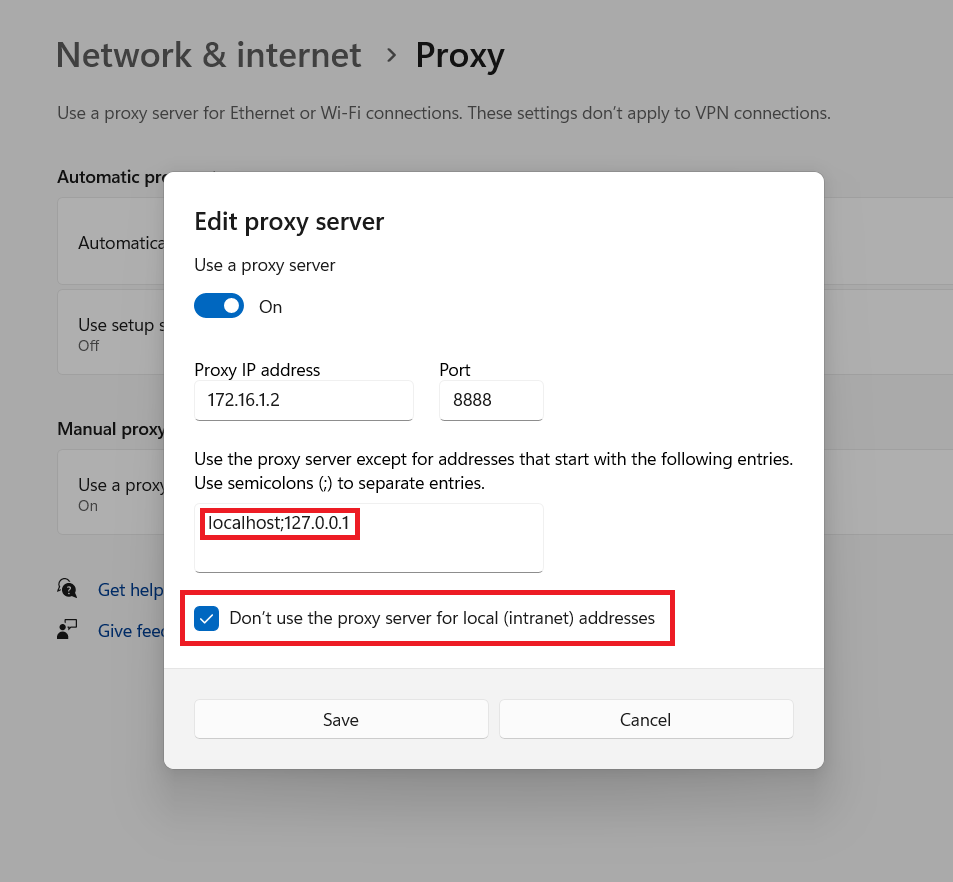
Internet Options (works for legacy apps / Internet Explorer settings)
inetcpl.cpl → Enter.
2) Temporarily disable the proxy (only when you have permission)
Purpose: Turn the proxy off temporarily for troubleshooting.
Windows Settings
Win + I → Network & Internet → Proxy.Under Manual proxy setup, toggle Use a proxy server to Off.
Under Automatic proxy setup, you may also toggle Automatically detect settings off if required by IT for a specific test.
After testing, re-enable the settings exactly as they were or restore from documented configuration.
Note: Some corporate environments set proxy via Group Policy; turning it off locally may not work or may be reverted by IT. Always document and get approval.
3) Environment variables for command-line/tools (targeted bypass)
Purpose: Let specific CLI tools skip proxy by using NO_PROXY/no_proxy. Useful for testing or for tools that honor these variables.
Per-session (PowerShell):
Persist for current user (PowerShell - will apply after new sessions):
Notes:
Use commas (,) or platform-expected separator depending on the tool; check the tool’s docs.Some tools expect
NO_PROXY entries with leading dot for domains (e.g., .example.com).4) App-specific proxy settings (useful to avoid system-wide changes)
Firefox
Menu → Settings → General → Network Settings → Settings…Choose Manual proxy configuration or No proxy for and add exceptions.
Chrome
Chrome uses the system proxy (Windows Settings). For app-specific control you can use extensions or launch flags when permitted (admin policies may block these).Developer tools / local testing
Many dev servers (e.g., local webservers) bind tolocalhost and are automatically exempt if you added localhost/127.0.0.1 to exceptions.5) Verify changes (how to check that an exception or disable worked)
Re-check system proxy:netsh winhttp show proxy (in an elevated Command Prompt).In PowerShell, run a connectivity test to a host that should bypass the proxy:
Try the specific app or browser and confirm the request reaches the expected host directly (or check proxy logs with your admin).

No comments:
Post a Comment